ZATCA E-Invoice QR Codes: What Your Printers and Scanners Need
E-invoicing is a software project, but the QR code still has to be printed and scanned. Here is what to check on the hardware side.

ZATCA's e-invoicing programme (FATOORAH) changed how invoices are created in Saudi Arabia. It is mainly a software and integration project, but in shops, restaurants and pharmacies, the result still comes out of a receipt printer, and it carries a QR code that customers and inspectors may scan.
Businesses usually focus on the software certification and forget the hardware. Then they discover that their old printer produces a fuzzy QR code, or that the code is too small to scan from a crumpled receipt. This guide covers what you need to know about printers and scanners. It does not replace official guidance: for rules, phases and deadlines, refer to ZATCA and your e-invoicing solution provider.
Key takeaways
- The QR code is generated by your certified e-invoicing software, not by the printer.
- Your printer must print it sharply enough to scan: resolution, print darkness and paper quality all matter.
- Most modern 80 mm thermal receipt printers can print compliant QR codes when driven correctly.
- Test printed receipts with a phone and a 2D scanner before going live.
- For rules and deadlines, always use ZATCA's official publications.
A quick background on ZATCA e-invoicing
ZATCA introduced e-invoicing in two phases. Phase 1 (generation) required businesses to issue invoices electronically from compliant systems. Phase 2 (integration) connects those systems to ZATCA's FATOORAH platform, and it is being rolled out to taxpayers in waves based on their revenue.
For simplified tax invoices, the B2C receipts printed at a till, the invoice includes a QR code containing key invoice data, encoded in a defined format and including cryptographic elements in Phase 2. The software creates that QR code; the printer's job is to reproduce it faithfully on paper.
Because ZATCA updates its technical guidelines and wave announcements, I always recommend checking the official ZATCA site and your software vendor for the current requirements that apply to your business.
What makes a receipt printer "QR-ready"?
There is no special 'ZATCA printer'. What you need is a printer that can print a dense QR code clearly. Check these points:
Print resolution
Most business-grade thermal receipt printers print at around 203 dpi, which is fine for a QR code of a reasonable size. Problems start when the software shrinks the QR code to save paper.
Native QR printing vs image printing
Many receipt printers can draw a QR code natively from the data (via ESC/POS commands). Others receive the QR code as an image from the driver. Native printing is usually sharper and faster. Ask your POS vendor which method they use.
Paper width
80 mm printers give the QR code more room than 58 mm models. If you are replacing printers anyway, 80 mm is the safer choice.
Print darkness and paper quality
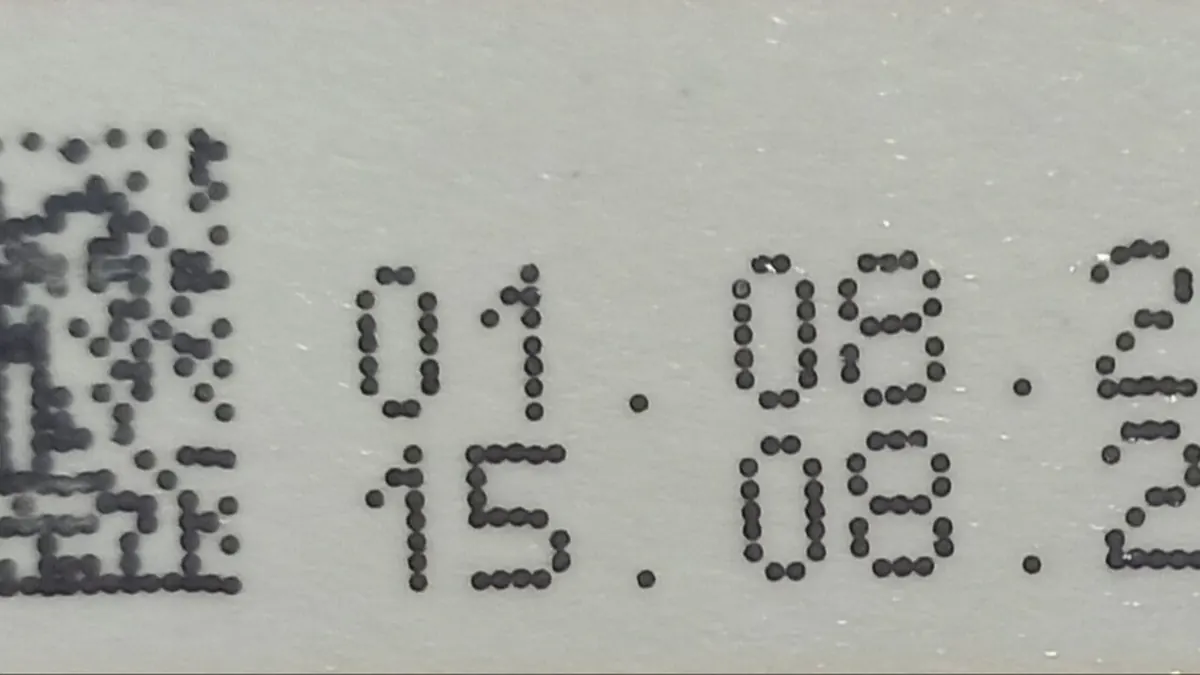
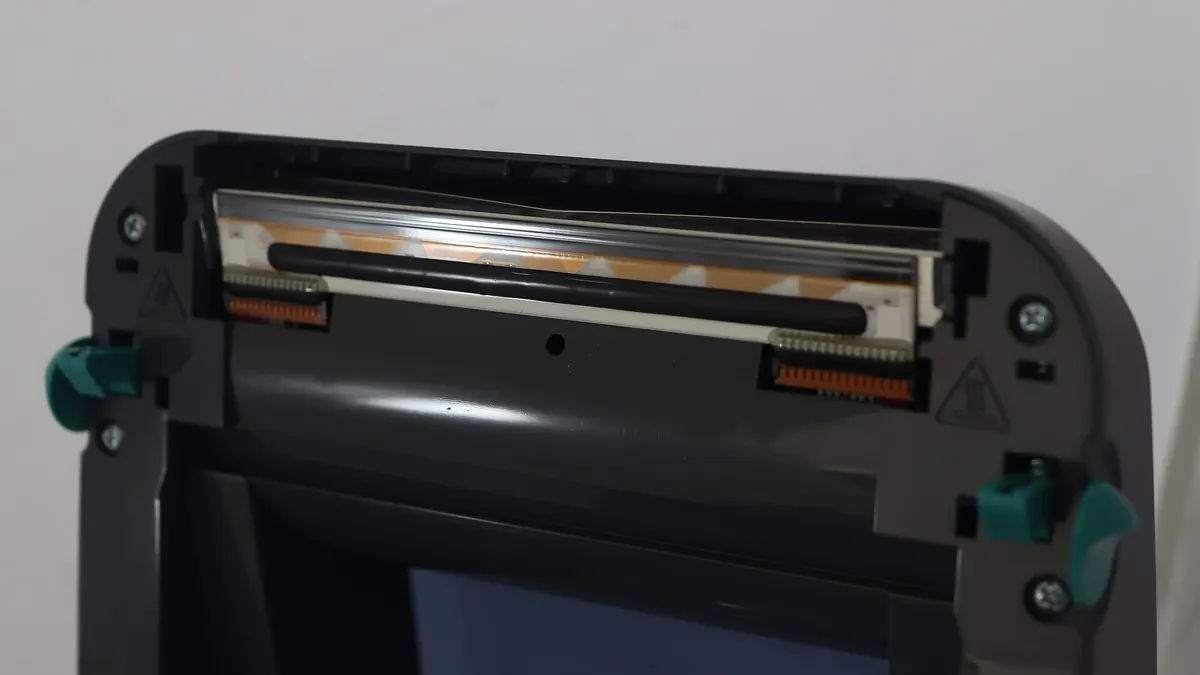
Low-quality thermal paper and a worn printhead produce grey, patchy codes. Use good paper, keep the printhead clean, and set darkness so the modules are solid black.
Will customers and inspectors be able to scan it?
A QR code can be scanned with any modern smartphone camera or any 2D barcode scanner. To make sure your receipts scan reliably:
- Print the QR code large enough; don't let the layout squeeze it into a corner.
- Leave a clear white margin (the 'quiet zone') around it.
- Avoid printing over folds or perforations.
- Test with several phones and a 2D scanner, including on a slightly crumpled receipt.
If your back office also needs to read QR codes from supplier invoices, for example, to check them during accounts payable, a 2D imager scanner at the finance desk saves a lot of manual work.
What about A4 invoices and shipping labels?
Standard (B2B) tax invoices are usually produced as PDFs or on A4 laser printers, where printing a QR code is rarely a problem. Warehouses that print delivery notes or labels with QR codes on thermal label printers should apply the same rules: adequate size, solid black print and a clear quiet zone.
Hardware checklist before you go live
- List every point that prints invoices or receipts: tills, delivery drivers' mobile printers, kiosks and back-office printers.
- Confirm each printer model is supported by your e-invoicing or POS software.
- Print test invoices from each device and scan them with a phone and a 2D scanner.
- Replace printers with worn printheads or poor print quality.
- Standardise on one or two printer models to simplify spares and support.
- Train staff to change paper correctly and report faded prints.
If you have self-service kiosks or self-checkout, remember that their built-in printers issue invoices too, and need the same check.
Frequently asked questions
Do I need to buy a special printer for ZATCA e-invoicing?
Usually not. ZATCA does not certify printers. Any reliable printer that your compliant software supports, and that prints the QR code clearly, is suitable. Replace old printers only if their output is not sharp enough to scan.
Who generates the ZATCA QR code?
Your ZATCA-compliant e-invoicing or POS software generates the QR code. The printer only prints it.
Can a 58 mm receipt printer print the QR code?
In most cases, yes, provided the software prints the code at a sensible size. 80 mm printers give more space and are the safer choice for new installations.
How can I check that my printed QR code is correct?
Scan it with a smartphone or 2D scanner to confirm it is readable. To check the content and compliance of the invoice itself, use the validation tools provided by ZATCA or your software provider.
Where can I find the latest ZATCA e-invoicing requirements?
On the official ZATCA website. Requirements and integration waves are updated over time, so always check the latest publications.